How to integrate Google AdSense ( Auto + Manual ) in Next.js: Without Hurting User Experience

Introduction
Congratulation for your adsense approval 🙂 !! If you’re running a Next.js website and want to add Google AdSense without slowing down your site or without making it look spammy, this guide is only for you. I recently implemented ads on my own Next.js site and discovered a setup that works perfectly: combining Auto Ads for passive revenue with Manual Ads for full layout control. This approach maximizes earnings while keeping Core Web Vitals strong and staying fully compliant with Google’s policies.
In this guide, I’ll show you the exact system I use to integrate Google AdSense into a Next.js blog or content website covering when to use Auto Ads, where Manual Ads make sense, and how to implement everything in a performance-friendly way.
Why AdSense Implementation in Next.js is Different
Before we jump into the code, let's understand why Next.js requires a special approach:
Traditional websites load ads with simple script tags. But Next.js uses server-side rendering and client-side hydration. If you add ads the old way, you'll run into issues like ads not showing up, duplicate ad requests, or worse—hurting your site's performance scores.
The good news? Next.js gives us tools like next/script that make this easier. We just need to use them correctly.
What We'll Cover Today
By the end of this guide, you'll have a complete AdSense setup with:
- Display Ads - Traditional banner ads in various sizes
- In-Feed Ads - Ads that blend into your blog post listings
- In-Article Ads - Ads placed naturally within your article content
- Multiplex Ads - Recommendation-style ad grids at the bottom of posts
Let me show you the system that actually works in production.
First Find Your Google AdSense Publisher ID and Ad Slot Keys
I’m sharing step-by-step information on how to find your Google AdSense Publisher ID (ca-pub ID) and Ad Slot Keys for different ad types such as Display Ads, In-Feed Ads, In-Article Ads, and Multiplex Ads.
I’ve explained the exact navigation paths inside the AdSense dashboard so that you can easily collect all the required details without facing any confusion or issues while continuing your blog setup.
1. Find Your Google AdSense Publisher ID (ca-pub ID)
To get your Publisher ID, follow these steps:
-
Log in to your Google AdSense account.
-
From the left sidebar, go to: Account → Settings → Account Information - CLICK HERE.
-
At the very top of this page, you will see your Publisher ID (ca-pub-xxxxxxxxxxxx).
Copy this ID and save it safely, as it is required for integrating AdSense with your website.
2. Find Ad Slot Keys for All Ad Types
Ad Slot IDs are one of the most important things for showing ads correctly on your website. To get them:
-
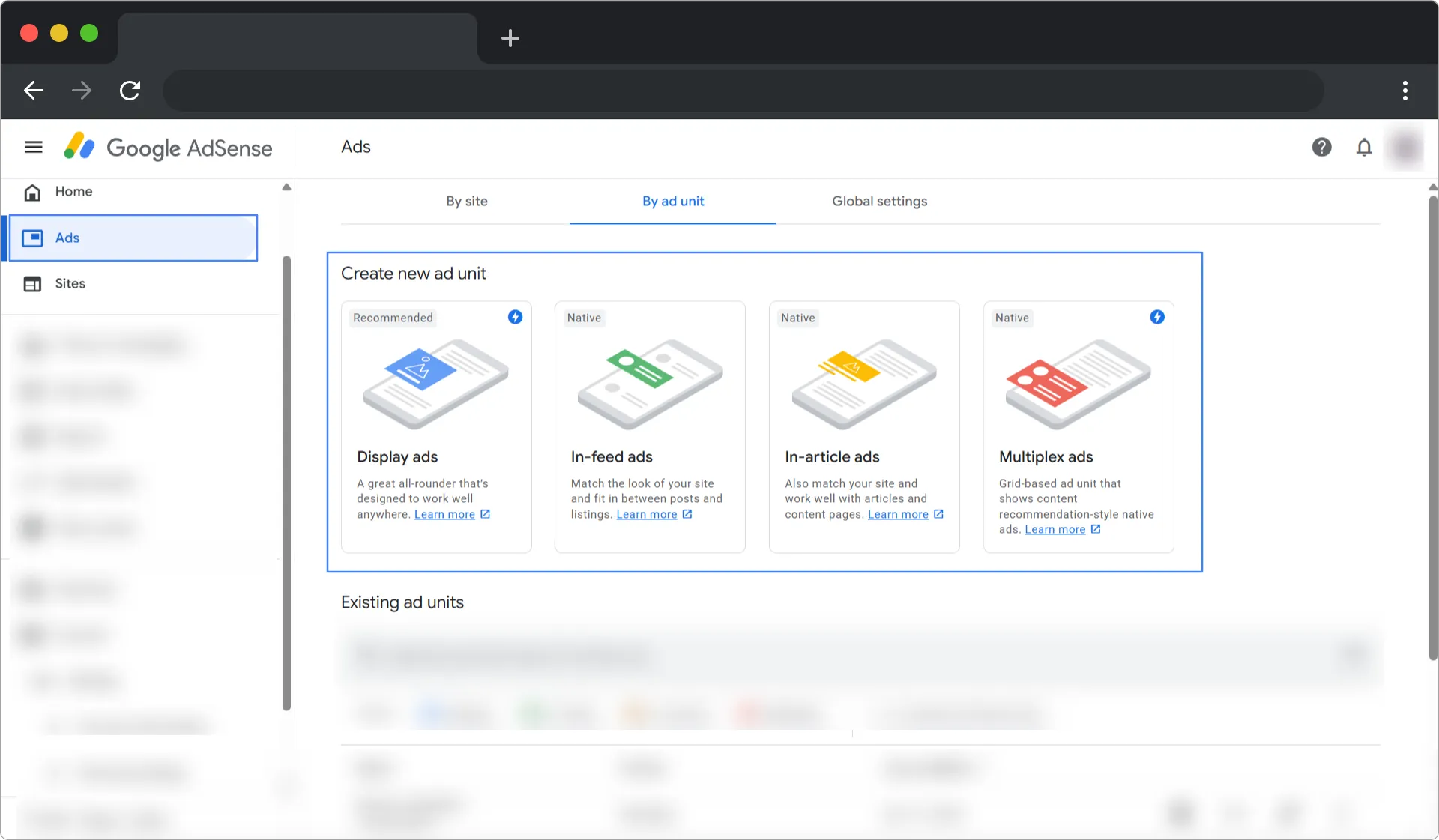
In the AdSense dashboard, go to the left sidebar and click: Ads → By ad unit.
-
Here, you will see all available ad types such as: Display Ads ,In-Feed Ads, In-Article Ads, Multiplex Ads
-
Click on any ad type and continue with the default settings - CLICK HERE.
-
After completing the setup, AdSense will generate an ad code- CLICK HERE.
-
From that code, copy the Ad Slot (data-ad-slot) value and save it.
Don’t worry at all — the process is very simple and beginner-friendly. Just follow the steps calmly.
Step 1: Setting Up the Global AdSense Script
First things first - we need to load the Google AdSense script. This script needs to load on every page of your site, but we want to be smart about it. If we load it wrong, it can block your page from rendering quickly.
Create a new file at: src/components/google-adsense.tsx
typescriptimport Script from "next/script";

// Props interface for Google AdSense component
// pId = Google AdSense Publisher ID (e.g. ca-pub-xxxxxxxxxxxx)

interface GoogleAdsenseProps {
  pId: string;
}

export const GoogleAdsense = ({ pId }: GoogleAdsenseProps) => {
  // Prevent AdSense from loading in development mode
  if (process.env.NODE_ENV !== "production") {
    return null;
  }

  return (
    <Script
      // Google AdSense script URL with publisher ID
      src={`https://pagead2.googlesyndication.com/pagead/js/adsbygoogle.js?client=${pId}`}
      crossOrigin="anonymous"  // Required for CORS when loading external scripts
      strategy="afterInteractive" // Load script after the page becomes interactive
    />
  );
};
What's happening here?
The GoogleAdsense component loads the AdSense script, but there are a few crucial things to keep in mind:
-
Production-only loading: The if statement checks if we're in production. Ads won't load during development (when you execute npm run dev) only ads skeleton loads. This is important because Google doesn't want you clicking your own ads during testing.
-
Performance optimization: The strategy="afterInteractive" tells Next.js to load this script after the page becomes interactive. This means your ads won't slow down your initial page load. Your content shows up first, then the ads load in the background.
-
Publisher ID: The pId prop is your AdSense publisher ID (looks like "ca-pub-1234567890123456"). This will be passed in via an environment variable.
Step 2: Integrate the Script to Your Root Layout
Now, let's add this component to your root layout to make sure this script loads on every page:
Open src/app/layout.tsx and add the component:
typescriptimport { GoogleAdsense } from "@/components/google-adsense";

// RootLayout component - This wraps the entire application and is rendered once

export default function RootLayout({
  children,
}: {
  children: React.ReactNode;
}) {
  return (
    <html lang="en">
      <body>
        {/* Load Google AdSense globally */}
        {/* Uses environment variable for security */}
        <GoogleAdsense pId={process.env.NEXT_PUBLIC_GOOGLE_ADSENSE_ID!} />
        {children}
      </body>
    </html>
  );
}
- Important: Create a
.env.localfile in your project root and add your publisher ID:
envNEXT_PUBLIC_GOOGLE_ADSENSE_ID=ca-pub-1234567890123456
Replace the numbers with your actual AdSense publisher ID. The NEXT_PUBLIC_ prefix makes this variable accessible in the browser.
Step 3: Create a Centralized Ad Configuration - Control Center
Here's where majority of tutorials go wrong they hardcode ad slot IDs everywhere. Maintaining this becomes a nightmare. Rather, let's create a single file that manages all our ad settings.
Create a file at: src/lib/ad-config.ts:
typescriptexport const AD_CONFIG = {
  // Your AdSense Publisher ID
  PUBLISHER_ID: process.env.NEXT_PUBLIC_GOOGLE_ADSENSE_ID,

  // All your ad slot IDs in one place
  SLOTS: {
    HORIZONTAL_MAIN: "1234567**",      // For homepage
    SQUARE_SIDEBAR: "3454567**",       // Sidebar ads
    IN_ARTICLE: "6543367**",           // Inside blog posts

    IN_FEED: "654367**",              // Blog listing pages
    IN_FEED_LAYOUT_KEY: "-6c+o4-1w-7n+8*", // Special key for in-feed format

    MULTIPLEX: "98778987**",            // Bottom recommendation grid
  },

  // Only show ads in production
  ENABLED: process.env.NODE_ENV === 'production'
};
What are these slot IDs?
Every ad unit you create in Google AdSense is assigned a unique ID. When you create a new ad unit in your AdSense dashboard, Google generates a code snippet that includes this ID. Copy those IDs here.
For example - Google provides you with the following code when you create a display ad:
typescript<ins class="adsbygoogle"
     data-ad-client="ca-pub-1234567890123456"
     data-ad-slot="2617122795"> // this one
</ins>
That 2617122795 is your slot ID. Save it in this config file.
Step 4: Build the Reusable Ad Component
This is the heart of our implementation. Instead of copy-pasting the same ad code everywhere, I created a reusable component that handles all ads type:
Create the file at: src/components/ads/ad-unit.tsx:-
typescript'use client';

import { useEffect, useState } from 'react';
import { usePathname } from 'next/navigation';
import { AD_CONFIG } from '@/lib/ad-config';

interface AdUnitProps {
  client: string;
  slot: string;
  format?: 'auto' | 'fluid' | 'rectangle' | 'autorelaxed';
  layout?: string;
  layoutKey?: string;
  style?: React.CSSProperties;
  responsive?: boolean;
  className?: string;
}

declare global {
  interface Window {
    adsbygoogle: any[];
  }
}

export default function AdUnit({
  client,
  slot,
  format = 'auto',
  layout,
  layoutKey,
  style = { display: 'block' },
  responsive = true,
  className,
}: AdUnitProps) {
  const pathname = usePathname();
  // Use state to force re-render on route change if needed, though key approach is better
  const [isDev, setIsDev] = useState(false);

  useEffect(() => {
    setIsDev(process.env.NODE_ENV !== 'production');
  }, []);

  useEffect(() => {
    try {
      // Small timeout to ensure DOM is ready and script is loaded
      if (typeof window !== 'undefined') {
        (window.adsbygoogle = window.adsbygoogle || []).push({});
      }
    } catch (err) {
      console.error('AdSense error:', err);
    }
  }, [pathname, slot]); // Re-trigger on route change or slot change

  if (isDev) {
    const getSlotName = (id: string) => {
      const entry = Object.entries(AD_CONFIG.SLOTS).find(([_, value]) => value === id);
      return entry ? entry[0] : 'UNKNOWN_SLOT';
    };

    return (
      <div
        className={`flex items-center justify-center bg-gray-200 border-2 border-dashed border-gray-400 text-gray-500 font-mono text-sm p-4 ${className}`}
        style={{ width: '100%', minHeight: '250px', ...style }}
      >
        <div className="text-center">
          <strong>Google AdSense Placeholder</strong>
          <br />
          Type: <span className="text-blue-600 font-bold">{getSlotName(slot)}</span>
          <br />
          Format: {format}
        </div>
      </div>
    );
  }

  return (
    <div className={className} style={{ ...style }} key={pathname + slot}>
      <ins
        className="adsbygoogle"
        style={{ display: 'block' }}
        data-ad-client={client}
        data-ad-slot={slot}
        data-ad-format={format}
        data-full-width-responsive={responsive}
        data-ad-layout={layout}
        data-ad-layout-key={layoutKey}
      />
    </div>
  );
}
Let me explain what this component does:
-
The Placeholder for Dev server: When you're developing locally, instead of displaying errors or blank spaces, you'll see a lovely bordered box that says "Ad Placeholder." Without actually loading any advertising, this makes it easy to visualize where your ads will show.
-
The useEffect Hook: This is very important. The line (window.adsbygoogle = window.adsbygoogle || []).push({}) tells Google to load an ad into this particular slot. We wrap it in useEffect because it needs to run after the component mounts on the client side.
-
Pathname Dependency: The dependency array contains the pathname. This means if someone navigates to a new page (using Next.js client-side navigation), the ads will refresh properly.
-
Flexible Props: The component accepts various props to handle different ad formats. Some ads have fixed sizes , some are responsive, and some require unique layout keys, such as in-feed ads.
Step 5 - Where to Place Ads for Maximum Revenue (Without Annoying Users)
Now for the fun part - actually placing the ads. Here's my strategy after months of testing.
DISPLAY ADS ( HORIZONTAL BANNER ) - LIVE EXAMPLE
These are your standard banner ads. They work great at the top of pages or between content sections.
- Perfect for: Homepage pages
- Placement: Just below the header or above the main content.
typescriptimport AdUnit from "@/components/ads/ad-unit";
import { AD_CONFIG } from "@/lib/ad-config";

export default function HomePage() {
  return (
    <div>
      <h1>Welcome to My Site</h1>

      {/* Horizontal banner ad - Style acc to your convenience */}
      <div className="my-8 w-full min-h-[90px]">
        <AdUnit
          client={AD_CONFIG.PUBLISHER_ID!}
          slot={AD_CONFIG.SLOTS.HORIZONTAL_MAIN}
          format="auto"
          responsive="true"
        />
      </div>

      {/* Your content here */}
    </div>
  );
}
Important details:
-
The min-h-[90px] prevents layout shift. When the page loads, there's already space set aside for the ad. Without it, your content jumps around when the ad loads, which hurts user experience and your SEO score.
-
format="auto" - enables Google to select the ideal ad size for the available area.
-
Responsive ("true") - allows the ads to adjust to various screen sizes.
DISPLAY ADS ( SQUARE SIDEBAR ) - LIVE EXAMPLE
Square ads work perfectly in sidebars, especially on blog posts.
typescript{/* Sidebar Ad - Top */} <div className="hidden lg:block min-h-[250px] w-full overflow-hidden"> <AdUnit client={AD_CONFIG.PUBLISHER_ID} slot={AD_CONFIG.SLOTS.SQUARE_SIDEBAR} format="rectangle" responsive={true} /> </div> {/* Sidebar Ad - BOttom*/} <div className="hidden lg:block min-h-[250px] w-full overflow-hidden "> <AdUnit client={AD_CONFIG.PUBLISHER_ID} slot={AD_CONFIG.SLOTS.SQUARE_SIDEBAR} format="rectangle" responsive={true} /> </div>
Important points:
-
On mobile devices, the sidebar is hidden by "hidden lg:block". You don't want large square ads taking up mobile screen space.
-
The sidebar sticks when users scroll thanks to "sticky top-24". The ads stay visible longer, which can increase revenue.
-
We use the same slot ID twice. Google AdSense is intelligent enough to show different ads for every position.
Step 6 - Advance ads system - In feed, In Article and Multiplex Ads
Advanced ad systems (In-Feed, In-Article, and Multiplex ads) are important because they show ads naturally inside content, helping earn more money without annoying users.
IN-FEED ADS ( BLOG LISTINGS )- LIVE EXAMPLE
In-feed ads are my favorite because they blend seamlessly into the blog post grid and don’t feel intrusive at all. You’ll need to add the code according to your logic at the place where your blog posts are being rendered.
- Goal: Insert ads naturally into your blog post grid.
- Strategy: Show an ad after every 5th post.
typescriptimport React from "react";
import BlogCard from "@/components/blog-card";
import AdUnit from "@/components/ads/ad-unit";
import { AD_CONFIG } from "@/lib/ad-config";

export default function BlogPage({ posts }) {
  return (
    <div className="grid grid-cols-1 md:grid-cols-2 lg:grid-cols-3 gap-6">
      {posts.map((post, index) => (
        <React.Fragment key={post.slug}>
          {/* Show an ad after every 5 posts */}
          {index > 0 && index % 5 === 0 && (
            <div className="col-span-1 min-h-[300px]">
              <AdUnit
                client={AD_CONFIG.PUBLISHER_ID!}
                slot={AD_CONFIG.SLOTS.IN_FEED}
                format="fluid"
                layoutKey={AD_CONFIG.SLOTS.IN_FEED_LAYOUT_KEY}
              />
            </div>
          )}

          <BlogCard post={post} />
        </React.Fragment>
      ))}
    </div>
  );
}
How this works:
-
We are going through blog posts in a loop. This line is where the magic occurs: {index > 0 && index % 5 === 0 &&...}.
-
index > 0 assure that we don't show an ad as the very first item.
-
index % 5 === 0 checks if the index is divisible by 5 (so after the 5th post, 10th post, 15th post, etc.) A natural flow is create as a result.
-
A unique layout key is needed for in-feed ads. When you create an in-feed ad unit in AdSense, Google provides this key. It tells Google how to style the ad to match your feed.
In-Article Ads ( Inside your blog content )
These ads appear within your blog post content. They're effective because readers are already engaged with your content - LIVE EXAMPLE.
- Goal: Place ads within your article, but not too intrusively.
- Strategy: Insert after every 2nd section of your blog content.
typescriptexport default function BlogPost({ post }) {
  return (
    <article className="max-w-4xl mx-auto">
      <h1>{post.title}</h1>

      {post.sections.map((section, i) => (
        <React.Fragment key={i}>
          {/* Render the section content */}
          <section>
            <h2>{section.heading}</h2>
            <p>{section.content}</p>
          </section>

          {/* Insert ad after every 2nd section */}
          {(i + 1) % 2 === 0 && (
            <div className="my-8 max-w-[895px] mx-auto min-h-[250px]">
              <AdUnit
                client={AD_CONFIG.PUBLISHER_ID!}
                slot={AD_CONFIG.SLOTS.IN_ARTICLE}
                format="fluid"
                layout="in-article"
              />
            </div>
          )}
        </React.Fragment>
      ))}
    </article>
  );
}
Why after every 2nd section?
-
You don't want ads too early or too late. Placing ads after every other section strikes a good balance.
-
The formula: (i + 1) % 2 === 0 means after section 2, 4, 6, etc. If your sections are long, you might want % 3 instead (every 3rd section).
-
Layout matters: layout="in-article" is required for in-article ads. It tells Google to format the ad specifically for article content, making it look native to your post.
Multiplex ads ( Recommendation grid )
Multiplex ads show a grid of recommendations at the bottom of your articles. They look similar to "Related Posts" sections - LIVE EXAMPLE.
typescript{/* Multiplex ad */} <div className="w-full min-h-[400px]"> <AdUnit client={AD_CONFIG.PUBLISHER_ID!} slot={AD_CONFIG.SLOTS.MULTIPLEX} format="autorelaxed" className="w-full block" /> </div> {/* Related Articles */} <section> <h2>Related Articles</h2> {/* Your related articles */} </section>
Critical warning about Multiplex ads:
I spent hours debugging why my multiplex ads were cut off. Here's what you need to know:
-
Use format="autorelaxed" - this is required for multiplex.
-
Make sure NO parent containers have overflow: hidden in their CSS.
-
Give it plenty of height (min-h-[400px] or more).
-
Don't wrap it in containers with fixed dimensions.
Multiplex ads create a responsive grid, and they need freedom to expand. If you constrain them too much, they'll only show partially or not at all.
Step 7: Balancing Auto Ads and Manual Ads
"Auto Ads" is a feature of Google AdSense that places ads on your website automatically. Should you use them alongside manual ads?
Here's what I suggest:
Disable in Auto Ads settings:
-
Anchor ads (they can be annoying on mobile).
-
In-page ads (conflicts with your manual placements).
-
Side rail ads ( we can use manual display ads - square and horizontal ).
Keep enabled in Auto Ads:
- Vignette ads (full-screen ads between page loads - effective and non-intrusive).
Why this combination?
You control the main ad placements with manual ads, ensuring good user experience. Auto ads fill in extra opportunities you might have missed.
To configure this:
- Go to your AdSense dashboard.
- Click "Ads" → "Overview".
- Click on your site.
- Toggle off "Anchor ads", "Side rails" and "In-page ads".
- Leave "Vignette" on.
Step 8: Preventing Layout Shift (CLS)
Layout shift is when elements on your page move around as content loads. It's frustrating for users and hurts your Google rankings.
The solution: Reserve space for ads before they load and always add min-height to ad containers:
typescript// For horizontal banner
<div className="min-h-[90px]">
  <AdUnit ... />
</div>

// For square/sidebar ads
<div className="min-h-[250px]">
  <AdUnit ... />
</div>

// For in-feed ads
<div className="min-h-[300px]">
  <AdUnit ... />
</div>

// For multiplex
<div className="min-h-[400px]">
  <AdUnit ... />
</div>
These heights should match the typical size of the ads. Even if the exact ad is slightly different, having approximate space reserved prevents major shifts.
Wrapping Up
Implementing Google AdSense in Next.js requires more thought than a traditional website, but done right, it provides a smooth experience for your users while generating revenue.
The key takeaways:
- Use Next.js tools properly - next/script with afterInteractive strategy.
- Separate dev and production - Placeholders locally, real ads in production.
- Reserve space - Prevent layout shift with min-heights.
- Be strategic - Place ads thoughtfully, don't overdo it.
- Test thoroughly - Check all devices and browsers.
Important: Don't click your own ads! You can look at them, but clicking your own ads repeatedly can get your AdSense account banned.
Start with a few ad placements and monitor performance. You can always add more later once you see what works best for your audience.
Good luck with your monetization journey 🙂! If you run into issues, the problem is usually in the small details, double-check your IDs, wait for Google to process your site, and make sure you're testing in production mode.
HAPPY CODING !!
Frequently Asked Questions
Related Tools
Try out these tools mentioned in the article.