Website Image Audit
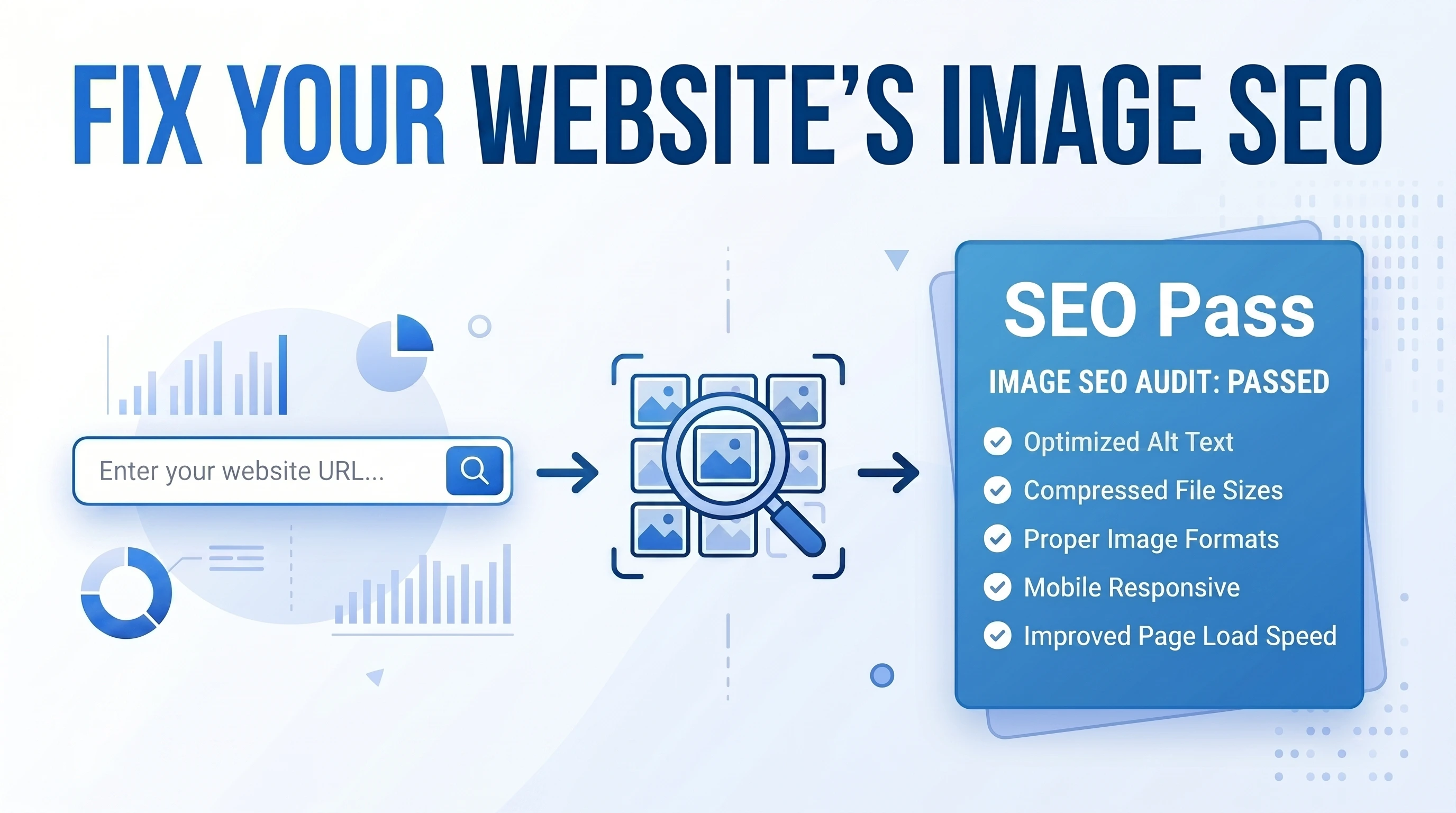
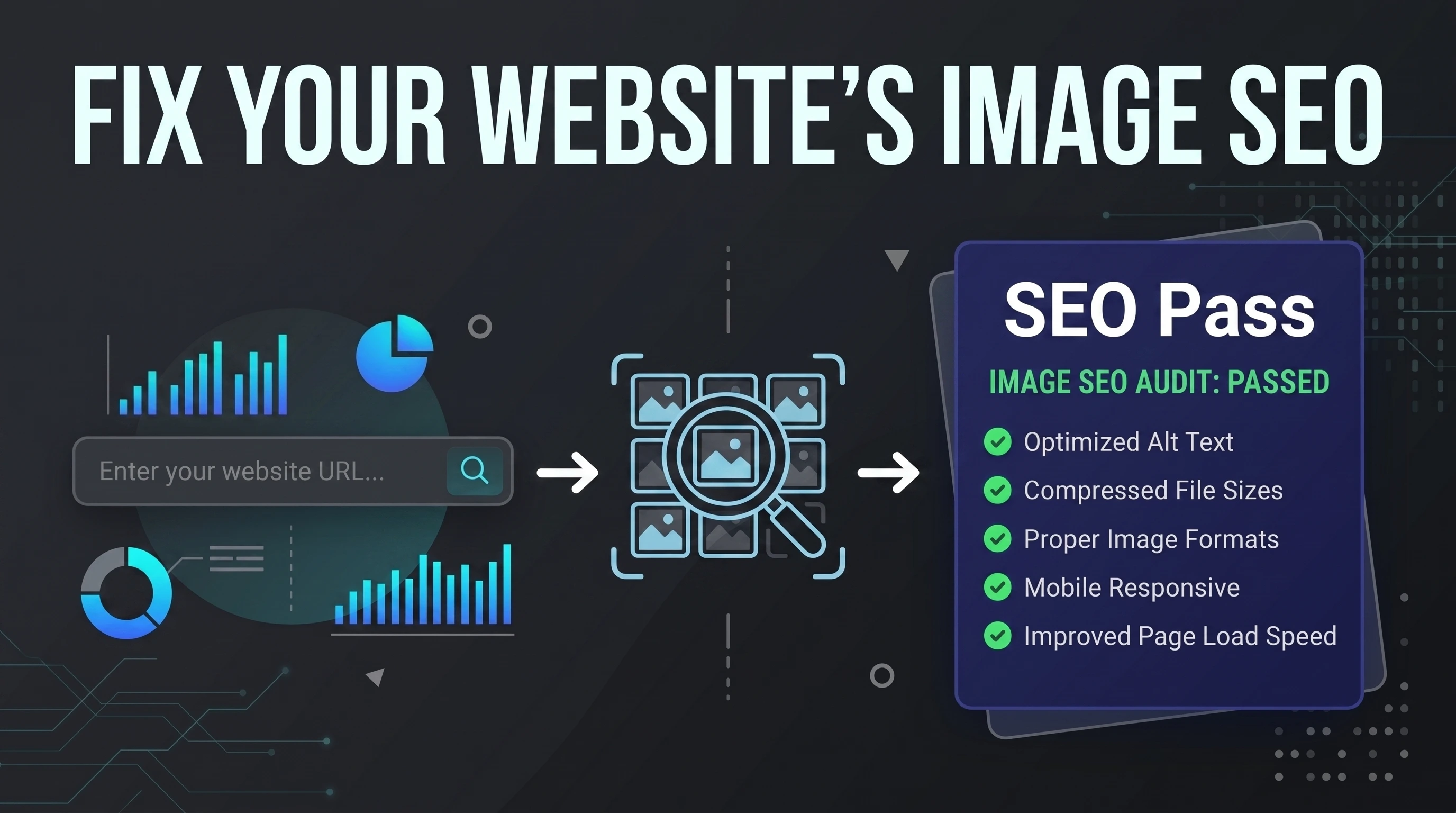
Enter a URL and the audit reads your pages the way a search engine crawler does, downloads every image it finds to measure its real size, format and dimensions, and lists each problem with the HTML that caused it, why it matters and how to fix it.
Public websites only. The scanner identifies itself as “ImageMagixImageAudit”, follows robots.txt, and downloads each image to measure it.
Why audit your website’s images?
Images are usually the heaviest part of a web page, and they are often where accessibility and SEO problems hide: alt text that is missing or just a file name, broken image URLs, photos several times larger than the space they fill, or a hero image that is lazy-loaded and delays Largest Contentful Paint.
Most of these problems are invisible when you look at the page, so they are easy to miss. This audit checks every image on up to 50 pages and shows you the evidence for each issue, so you can fix the ones that matter most first.
What the audit checks
Accessibility
Missing alt, file names or generic words used as alt, very long or repeated alt text, image links and buttons with no accessible name, and SVGs with role="img" but no title.
Performance
File size against role-based budgets, images larger than their display size, missing srcset/sizes, legacy formats with an estimated WebP saving, lazy-loading and fetchpriority on the likely LCP image, missing width/height, cache headers and SVG compression.
SEO
Missing, relative or small og:image, structured data without an image, and non-descriptive file names such as IMG_1234.jpg.
Errors
Broken images (4xx/5xx), URLs that don’t return an image, unreachable hosts, redirect chains, mixed content on HTTPS pages and formats most browsers can’t display.
How to audit your website’s images
- 1
Enter a URL
Paste a page or your home page. You can leave out https://.
- 2
Choose how many pages
Scan just that page, or up to 10, 25 or 50 pages found through your sitemap and internal links.
- 3
Watch results arrive
Pages and images are checked in parallel and issues appear as they are found. You can cancel at any time and keep what has been scanned.
- 4
Fix and export
Review issues by type, by page or image by image, then export a CSV, JSON or PDF report.
Built to be trusted
- Measured, not guessed: every image is requested from its server, so file sizes, formats, HTTP status and intrinsic dimensions are real values.
- Evidence for every issue: each finding shows the page URL and the HTML snippet that triggered it, why it matters, how to fix it, and a link to the relevant web.dev, MDN, W3C or Google documentation.
- Fewer false alarms: alt="" on decorative images is treated as correct, size budgets depend on how the image is used (icon, thumbnail, content or hero), and image URLs that only appear inside scripts are listed separately instead of being reported as problems.
- One image, one result: an image used on many pages (like a logo) appears once, with the list of pages it is on.
- Respectful crawling: the scanner identifies itself, follows robots.txt and its Crawl-delay, and never tries to get around firewalls or bot protection.
- Exports for your team: download every issue with its fix as CSV, the full image inventory as CSV, the complete results as JSON, or a print-friendly report you can save as PDF.
Image File Size Budgets Used by the Audit
| Image role | How the audit decides | Budget | High severity above |
|---|---|---|---|
| Icon or logo | A favicon, or an image 96 px or smaller | 20 KB | 50 KB |
| Thumbnail | At most 480 px wide, or displayed at 300 px or less | 100 KB | 250 KB |
| Content image | Any other image in the page content | 250 KB | 625 KB |
| Hero (likely LCP) image | The large image near the top that is probably the LCP element | 400 KB | 1000 KB |
| Background image | Set with an inline CSS background-image | 400 KB | 1000 KB |
| Social / metadata image | og:image, twitter:image or a structured-data image | 600 KB | 1.46 MB |
What Is a Website Image Audit?
A website image audit is a check of every image on your site for the three things images most often get wrong: page speed (files that are too heavy or too large for where they are shown), image SEO (missing alt text, unhelpful file names, missing social preview images) and accessibility (images and image links that screen reader users can’t understand). It also catches outright errors such as broken image links and images loaded over insecure HTTP.
General SEO audit tools and website speed tests usually report images as a single line item, such as “properly size images” for one page. An image-focused audit goes further: it lists each image once (even if it appears on 50 pages), shows the exact HTML that caused each problem, and gives you a fix you can hand to a developer or content editor.
How Images Affect Core Web Vitals and Page Speed
Google’s Core Web Vitals measure loading (Largest Contentful Paint, LCP), visual stability (Cumulative Layout Shift, CLS) and responsiveness (Interaction to Next Paint). Google recommends an LCP of 2.5 seconds or less and a CLS of 0.1 or less for at least 75% of page visits. Images play a direct part in the first two.
On many pages the LCP element is an image: a hero banner, a product photo or a featured blog image. Anything that delays that one image delays LCP. The most common causes are a file that is far heavier than it needs to be, an image that is lazy-loaded even though it is at the top of the page, and an image that the browser discovers late or downloads at low priority.
Layout shift happens when an image loads and pushes the content below it down the page. The fix is simple: give every image width and height attributes (or a CSS aspect-ratio) so the browser reserves the right amount of space before the file arrives.
- Likely LCP image lazy-loaded: reported as critical, because it is one of the easiest LCP wins to fix.
- No fetchpriority="high" or preload on the likely LCP image: reported so the browser can start it earlier.
- Missing width/height: reported as a layout shift (CLS) risk.
- Images far down the page without loading="lazy": reported so they don’t compete with what visitors see first.
How to Find Large Images Slowing Down Your Website
Large images are the most common reason a website feels slow on mobile data. There are two different problems, and they need different fixes. The first is a heavy file: a photo saved at maximum quality or in an old format. The second is an oversized image: a 4000-pixel-wide photo displayed in a 600-pixel-wide column, so most of the downloaded pixels are thrown away.
The audit measures the real byte size of every image from its server and compares it with a budget for how the image is used (the table above), so a 150 KB hero photo passes while a 150 KB icon is flagged. It also reads each file’s real pixel dimensions and compares them with the display width given in the HTML (the width attribute, srcset and sizes). When an image is more than 1.5 times wider than it needs to be even for a high-density (2×) screen, it is reported with an estimated saving.
To fix heavy files, compress them with the Image Compressor or target an exact size, for example with compress image to 100KB. To fix oversized images, resize them to about twice their display width with the Image Resizer.
Image Optimization Checklist
Image optimization is a short list of habits that, together, usually remove most of a page’s image weight without any visible loss in quality:
- Use a modern format. WebP is supported by all current browsers and is usually noticeably smaller than JPEG or PNG; AVIF is often smaller still. Convert in bulk with the Bulk Image Converter, or individually with JPG to WebP and PNG to WebP.
- Resize to the display size. About 2× the largest width the image is shown at is enough for sharp results on high-density screens.
- Serve responsive images. Provide several widths in
srcsetwith a matchingsizesattribute so phones download a small file and desktops a larger one. - Set width and height. This prevents layout shift and costs nothing.
- Lazy-load below the fold only. Use
loading="lazy"for images further down, never for the main image at the top. - Cache for a long time. Serve images with a long
Cache-Controlmax-age and change the file name when the image changes. - Use an image CDN where it helps. A content delivery network serves files from a location close to each visitor, and many image CDNs can convert to WebP/AVIF and resize automatically.
- Strip unneeded metadata. Camera EXIF data adds bytes and can leak GPS location; remove it with the EXIF Viewer & Remover.
Image SEO: Alt Text, File Names and Google Images
Search engines understand images mainly from the text around them. Google’s image SEO guidance highlights descriptive alt text, descriptive file names, the page content near the image, and making sure images are crawlable. Good image SEO helps your pages appear in Google Images and in image-rich search results, which can be a meaningful source of organic traffic for ecommerce, recipe, travel and how-to sites.
Good alt text describes what the image shows in the context of the page, in plain language, without stuffing keywords. “Red trail running shoe, side view” helps both screen reader users and search engines; “shoe running shoes best running shoes buy” helps no one and can look like spam. File names work the same way: red-trail-running-shoe.webp is a small, useful signal, while IMG_2041.jpg is not.
Social previews matter too. When someone shares your page on Facebook, LinkedIn, X or WhatsApp, the preview image comes from the og:image tag. Pages without one, or with a relative URL or a tiny image, get a poor preview or none at all.
How to Write Good Alt Text (and When to Leave It Empty)
Every image needs an alt attribute, but not every image needs alt text. The W3C’s guidance comes down to one question: what would you say about this image if you were reading the page aloud?
- Informative images (product photos, charts, photos that support the text): describe the content briefly.
- Functional images (a logo that links home, an icon button): describe the action or destination, such as “Acme home page” or “Search”.
- Decorative images (background textures, divider graphics): use
alt=""so screen readers skip them. The audit treats this as correct. - Complex images (detailed charts, diagrams): give a short alt and put the full explanation in visible text or a caption.
- Avoid “image of” or “picture of”, file names, single generic words such as “photo” or “logo”, and the same alt text on several different images.
Image Accessibility and WCAG
WCAG success criterion 1.1.1 (Non-text Content) requires a text alternative for images that convey information, and image links and buttons need an accessible name so that people using screen readers know where they lead. Missing alt text and unlabeled icon links are among the most common problems found in web accessibility audits.
This audit checks the image-related parts of accessibility that can be detected reliably from HTML: missing alt attributes, unhelpful alt text, links and buttons whose only content is an unlabeled image or SVG, and SVGs marked role="img" without a title or label. It is not a full accessibility or ADA/WCAG compliance audit: colour contrast, keyboard navigation and whether alt text is actually accurate still need a human review.
Finding Broken Images and Other Image Errors
A broken image shows visitors an empty box or a broken-image icon, and it wastes search engine crawl time. Images break when files are deleted or renamed, when a site moves to a new domain or CDN, or when a URL in a CMS is mistyped. The audit requests every image and reports any 4xx or 5xx response as broken, along with the pages that use it.
It also reports URLs that answer successfully but don’t return an image (often an HTML error page), image hosts that can’t be reached, redirect chains, insecure http:// images on https:// pages (mixed content) and formats most browsers can’t show, such as HEIC and TIFF. When an image server rate-limits or blocks the scanner, those images are listed as “couldn’t be checked”, never as broken, so you don’t chase problems that visitors don’t have.
Image Audits for WordPress, Shopify and Ecommerce Sites
WordPress generates several sizes of every upload and adds srcset automatically, but themes often output the wrong sizes value, page builders add large background images, and the media library fills up with full-resolution camera photos. Image optimization plugins help, but it is still worth checking what visitors actually download.
Shopify and other ecommerce platforms usually serve images through a CDN with automatic resizing, so the common problems are elsewhere: product photos with missing or repeated alt text (often the product name on every gallery image), lazy-loaded hero images on collection pages, and very large source uploads. Product images also drive traffic from Google Images and Shopping, which makes image SEO more valuable for online stores than for most sites.
Next.js and other React sites often use an image component that handles formats and srcset, but the image that becomes LCP still needs priority / fetchpriority="high", and images added purely on the client after load can’t be seen by crawlers that don’t run JavaScript.
How This Audit Compares With PageSpeed Insights and Lighthouse
PageSpeed Insights and Lighthouse load one page in a real browser and measure what actually happened: the real LCP element, real layout shifts and real download timings. That makes them the best tool for confirming a performance problem on a single page. Their image advice is grouped into a few performance audits for that one URL.
This audit works differently. It reads the HTML of up to 50 pages, measures every image file, and checks performance, SEO, accessibility and errors together, listing each image once across the whole site. It does not run JavaScript or render the page, so layout-based checks (the likely LCP image, images below the fold) are clearly marked as heuristics. Use both: this audit to find every image problem across the site, and PageSpeed Insights to confirm the impact on your most important pages.
How to Use the Results
Start with critical and high issues: broken images, lazy-loaded LCP images, missing alt text and image links with no name. Then work through medium performance issues on your highest-traffic pages, where saved kilobytes matter most. Low issues (cache headers, file names, format suggestions) are worth fixing in bulk when you next update your images or your server configuration.
The “By page” view is useful for content editors, who usually fix one page at a time. The “By issue” view suits developers, because one template or server change often fixes the same issue on every page. Export the issues CSV to share the work, and re-scan afterwards to confirm the fixes.
Who Uses This and Why
SEO consultants and agencies
Add an image section to a technical SEO audit: every missing alt, broken image and missing og:image across the site, exported as a CSV with the fix for each row.
Ecommerce store owners
Find heavy product photos that slow down category pages, and gallery images with missing or repeated alt text that miss out on Google Images traffic.
Web developers
Check srcset/sizes, lazy loading, width/height and cache headers before a launch, and confirm that the hero image isn’t lazy-loaded.
WordPress site owners
See which uploads are still served at full camera resolution and whether your theme’s responsive images actually work.
Content and marketing teams
Make sure every blog post has a social preview image and descriptive alt text before it is promoted.
Accessibility reviewers
Get a quick list of image-related WCAG problems (missing alt, unlabeled icon links and SVGs) to fix before a full manual review.
Pro Tips
- Scan your home page first with “This page only”: it is usually the most visited page and the template for many others.
- Fix issues in templates, not page by page: a header logo with no alt text shows up once in the results but is fixed everywhere with one change.
- Resize before you compress: halving an image’s width removes about three quarters of its pixels, more than any quality setting.
- Give the main image at the top of each page fetchpriority="high" and never lazy-load it.
- Re-scan after deploying fixes. Results are cached in your tab for 10 minutes, so use “Scan again” for fresh data.
Common Pitfalls
- Writing alt text for SEO instead of people. Keyword-stuffed alt text helps no one and can be treated as spam.
- Adding alt text to purely decorative images. Use alt="" so screen readers skip them.
- Lazy-loading every image, including the hero, which delays Largest Contentful Paint.
- Uploading 5 MB camera photos and relying on CSS to shrink them: visitors still download the full file.
- Treating a score as the goal. Fix the issues that affect real visitors on your most important pages first.
Frequently asked questions
How do I check the images on my website for SEO?
Enter your page or home page URL above and start the audit. It finds every image in the HTML, checks the alt text, file names and og:image tags, downloads each image to measure its size and format, and lists every problem with the page it is on and how to fix it. Choose up to 50 pages to check a whole section of your site at once.
What is a good image file size for a website?
It depends on how the image is used. As a rule of thumb, this audit allows about 20 KB for icons and logos, 100 KB for thumbnails, 250 KB for images in the content, and 400 KB for a large hero image at the top of the page. Most photos can meet these budgets once they are resized to about twice their display width and saved as WebP or AVIF.
Do images affect page speed and Core Web Vitals?
Yes. On many pages the Largest Contentful Paint (LCP) element is an image, so a heavy, late-discovered or lazy-loaded hero image directly slows LCP. Images without width and height also cause layout shift, which hurts Cumulative Layout Shift (CLS). Google recommends an LCP of 2.5 seconds or less and a CLS of 0.1 or less.
Does alt text help SEO?
Yes. Google uses alt text, together with the file name and the surrounding page text, to understand what an image shows, which helps it rank in Google Images. Alt text is also required for accessibility. Write it for people first: a short, accurate description works better than a list of keywords.
What is the best image format for websites?
For photos, WebP is a safe default because every current browser supports it and files are usually much smaller than JPEG; AVIF is often smaller still. Use SVG for logos and icons, and PNG only when you need lossless images that WebP can’t replace. The audit flags JPEG, PNG and GIF images over 10 KB with an estimated saving from switching to WebP.
What does the Website Image Audit check?
It checks every image reference in your pages’ HTML:
<img> and <picture> elements (including srcset), inline CSS background images, inline SVGs, og:image and twitter:image tags, favicons and images in JSON-LD structured data. Each image is downloaded from its server to measure its real size, format, dimensions, HTTP status and caching headers, and then checked for accessibility, performance, SEO and error issues.How are file sizes measured?
From the real network response. The scanner asks the image server for the first 128 KB of each file, reads the total size from the Content-Range or Content-Length header, and if neither is sent it counts the bytes as they download. The format and pixel dimensions are read from the file header itself, not guessed from the file extension.
Why isn’t alt="" reported as a problem?
An empty alt attribute is the correct way to mark a purely decorative image, so screen readers skip it. Only a missing alt attribute is reported. The exception is an image that is the only content of a link or button: then it needs alt text (or the link needs a label), because otherwise the link has no accessible name.
Does the audit run JavaScript?
No. It reads the HTML your server sends, which is what most search engine crawlers see first. Images that are only added by JavaScript after the page loads can’t be seen; if a page looks like a client-rendered app, the results say so. Image URLs that appear only inside scripts are listed separately as “unverified” and are never reported as issues, because there is no way to know whether they are actually shown.
How does it detect the LCP image and offscreen images without a browser?
It can’t measure real layout, so these checks are clearly marked as heuristics. The likely LCP image is the image marked with fetchpriority="high" or preloaded, or otherwise the first large image (at least 400 px wide) among the first five images in the HTML, outside the header and navigation. An image that comes after six or more content images in the HTML is treated as probably below the fold. Confirm LCP in PageSpeed Insights or Chrome DevTools.
How is the image health score calculated?
Each unique image and each scanned page counts as one unit. In each category (Performance, SEO, Accessibility, Errors) a unit’s penalty is the weight of its worst issue: critical 1, high 0.75, medium 0.4, low 0.1. The category score is 100 × (1 − total penalty ÷ number of units), and the overall score is the average of the four categories.
Are the potential savings exact?
No, they are estimates and are labelled that way. Format savings use the lower end of Google’s published comparisons (WebP files are typically at least 25% smaller than JPEG, 26% smaller than PNG and 19% smaller than GIF). Resize savings assume file size scales with pixel count. Your real savings depend on the image content and your encoder settings.
How many pages does it scan?
One page, or up to 10, 25 or 50 pages of the same site (www and non-www count as the same site). Pages come from links on the start page and from your sitemap.xml. Pages blocked by robots.txt are skipped, and if robots.txt sets a Crawl-delay, pages are scanned one at a time with that delay (up to 5 seconds).
My site says “blocked by firewall”. Can the scanner get around Cloudflare?
No, and it doesn’t try. The scanner identifies itself with the user agent “ImageMagixImageAudit” and respects bot protection. If your firewall blocks it, the results tell you which protection responded. If it is your site, you can allow that user agent in your firewall rules and scan again.
Can I scan a staging site, localhost or an internal address?
No. For security, only public websites on the standard ports (80 and 443) can be scanned. Private, local, link-local and cloud metadata addresses are blocked, including when a public URL redirects to one. Pages behind a login can’t be scanned either.
Are my scan results stored?
The pages and images are fetched through our server, because browsers can’t read other websites directly. Results are kept in your browser tab for 10 minutes so you can come back to them, and are not saved on our servers. Use the “Scan again” button to get fresh results.
What can I export?
A CSV with one row per issue (with the page URLs, evidence, HTML snippet, why it matters, how to fix it and a reference link), a CSV inventory of every image, the complete results as JSON, and a print-friendly report that you can save as a PDF from your browser’s print dialog.
Fix broken images and missing alt text first, then the critical and high performance issues on your most visited pages. When you are ready to optimise files, the Bulk Image Converter turns JPEG and PNG into WebP or AVIF, and the Image Resizer cuts oversized photos down to the size they are displayed at.
Related tools
Bulk Image Converter
Convert JPEG and PNG files flagged by the audit to WebP or AVIF in one go.
Image Resizer
Shrink images that are larger than the space they are displayed in.
Image Compressor
Bring heavy files under their size budget without visible quality loss.
EXIF Viewer & Remover
Check and strip camera and GPS metadata before you publish photos.