Free Screenshot Annotation Tool for Chrome: ImageMagix Annotator — The Complete 2026 Guide

1. Introduction — The Friction in Screenshot Workflows
If you've ever needed to capture a screenshot, mark it up with arrows or text, blur out a password or API key, and share it in seconds, you already know how painful the usual workflow is. Open a screenshot tool, save the file, open Photoshop or Paint, edit, export, upload somewhere, then paste the link. That's five tools and ten minutes for something that should take five seconds.
This is exactly the problem ImageMagix Annotator, a free screenshot annotation tool for Chrome, was built to solve. In this guide, we'll walk through what it does, how the technology works under the hood, and why it's becoming a favorite among QA engineers, developers, designers, and remote teams who need a free screenshot annotation tool that doesn't upload their data anywhere.
2. Why You Need a Browser Screenshot and Markup Tool
Whether you're filing a bug report, giving design feedback, creating a tutorial, or documenting a workflow, screenshots are the fastest way to communicate visual information. But raw screenshots rarely tell the full story. You need to:
- Point out exactly where the bug is with highlighted boxes and pointers
- Number the steps in a process using sequential step badges
- Hide sensitive information like emails, passwords, auth tokens, or API keys before sharing
- Add context with formatted text overlays, arrows, and highlight shapes
Doing this with generic desktop apps is slow and often involves emailing files back and forth. A dedicated browser image annotator with blur and arrows solves this by keeping the entire workflow inside your browser tab without switching contexts.
3. What Is ImageMagix Annotator?
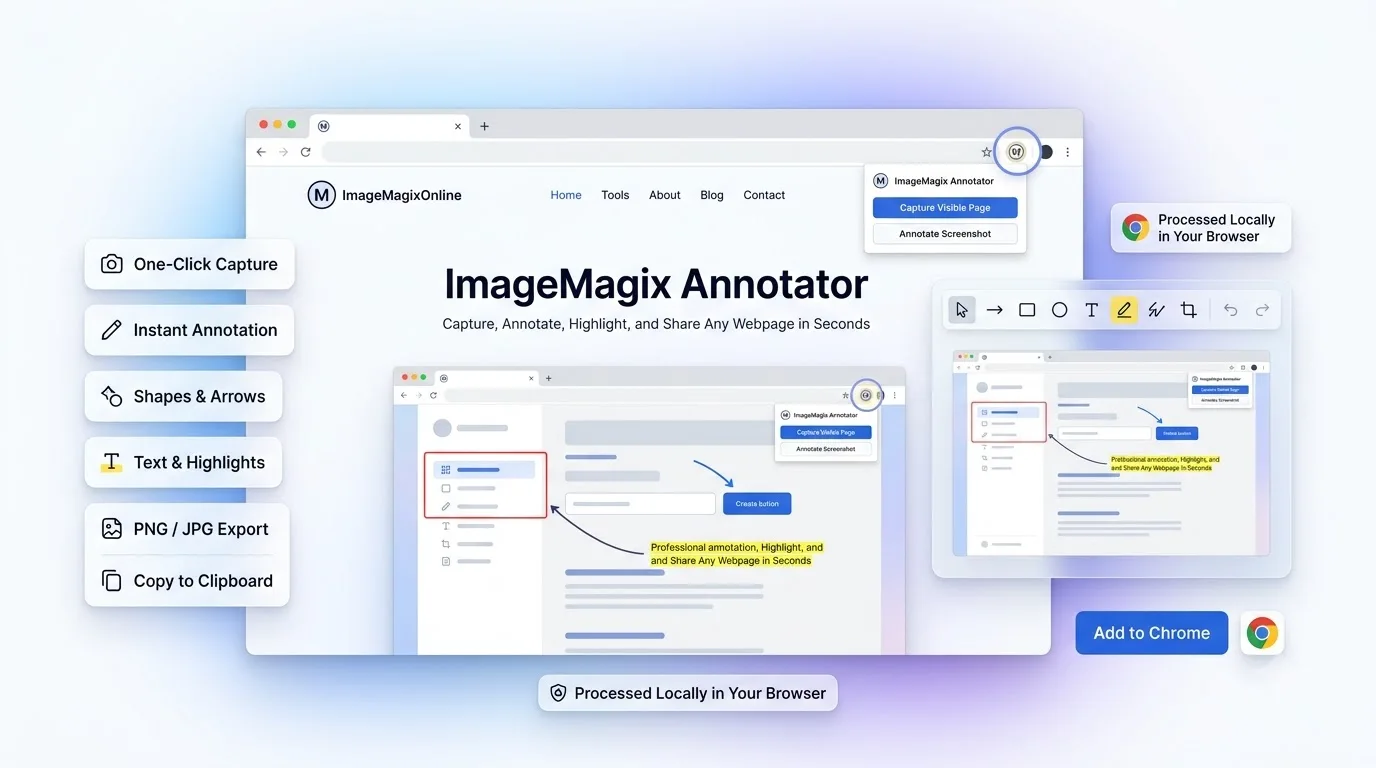
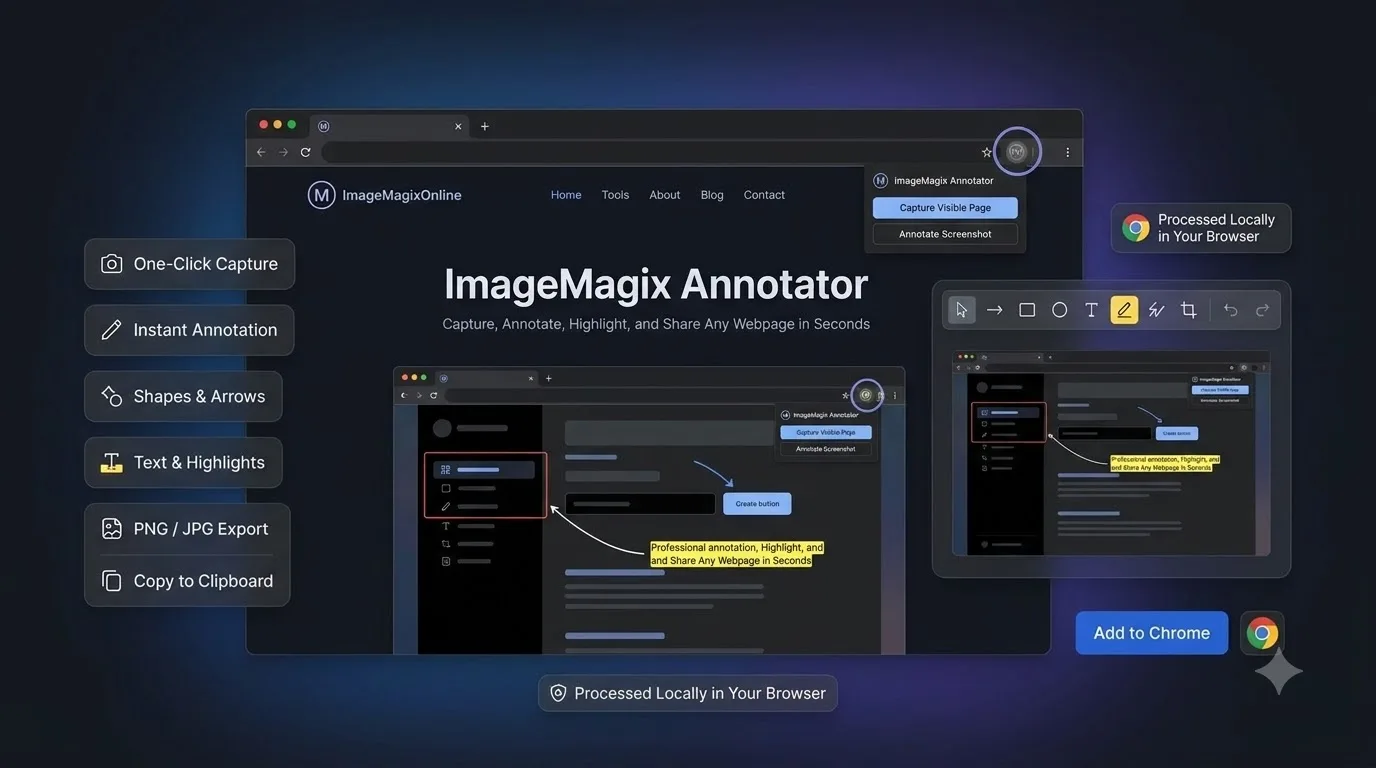
ImageMagix Annotator is a lightweight, privacy-conscious Chrome extension built to the modern Manifest V3 standard. It offers two one-click capture modes and pairs directly with our Fabric.js-powered online canvas editor — all without ever uploading your screenshot to a remote cloud server.
Two Native Capture Modes
- Visible Page Capture: One click takes a full-resolution PNG of your current browser tab using
chrome.tabs.captureVisibleTab. The extension automatically opens the web annotator in a new tab and loads your screenshot onto the canvas — ready to edit instantly. - Interactive Area Snipping: Need only part of the page? The "Select Area" mode injects a lightweight overlay directly into the webpage. You click and drag to draw a crop box around exactly the region you want — similar to the snipping experience on desktop OS tools, but built natively for the web.
4. The Secret Sauce: High-DPI Retina-Aware Cropping
Anyone who has tried building a Chrome extension screenshot annotator knows the biggest headache is device pixel ratio (DPR). On Retina MacBooks, 4K monitors, or high-DPI Windows displays, a naive crop produces blurry, misaligned images.
ImageMagix Annotator solves this with a dedicated
cropImage pipeline using OffscreenCanvas:- Coordinate Scaling: It multiplies every coordinate and dimension by the actual
devicePixelRatio(window.devicePixelRatio). - Target Resolution Initialization: It initializes the canvas at the exact target pixel resolution.
- Subpixel Accuracy: It draws only the selected region, scaled precisely, with zero blur or misalignment.
This is the kind of detail that separates a professional area crop screenshot Chrome Manifest V3 extension from basic tools — and it's why the exported images look crystal clear on any display.
5. Zero-Upload, Privacy-First Architecture
One of the most important aspects of ImageMagix Annotator is what it doesn't do: it never uploads your screenshot to a cloud server. Instead, it uses a secure sessionStorage + custom event handshake:
- The background service worker opens a new tab pointing to the online annotator workspace.
- Once the tab finishes loading, the base64 image data is placed into that tab's local
sessionStorage. - A custom
extension_image_readyevent notifies the web app that the screenshot is ready. - The annotator reads the data, converts it to a file blob, and immediately clears the session key.
This guarantees that your screenshots never touch a third-party server in transit — an essential requirement for developers and enterprise teams who need a privacy-focused screenshot tool for developers, especially when handling credentials, internal dashboards, or confidential client data. This approach adheres to OWASP security best practices regarding data minimization.
6. Editing Tools Once You’re in the Annotator
Once your screenshot lands on the canvas, you get access to a full suite of studio editing tools:
- Freehand Drawing: Adjustable brush stroke width, opacity, and color palette.
- Vector Shapes: Rectangles, circles, triangles, stars, and custom polygons.
- Arrows & Guide Lines: Standard arrows, double-ended arrows, curved connectors, and dashed guide lines.
- Rich Typography: Font family selection, font size, bold/italic/underline, alignment, background highlights, letter spacing, and shadow effects.
- Blur & Pixelate Tool: Instantly censor sensitive data like passwords, emails, faces, or API keys.
- Numbered Step Badges: Add sequential badges (1, 2, 3...) for building clean, professional tutorials and QA reproduction steps.
- History & Layer Controls: Full undo/redo stack with layer management (bring forward, send backward, duplicate, delete).
- Instant Export: Download ultra-sharp 2x PNGs or copy directly to your clipboard (
Ctrl+C).
7. Real-World Use Cases for Teams and Developers
🧪 QA and Bug Reporting
Capture the exact UI issue, circle the glitch, number reproduction steps with step badges, and paste it straight into Jira, Linear, or GitHub issues in under five seconds.
🎨 Design and Product Feedback
Instead of vague comments like "the button alignment feels off," annotate the exact element on the rendered webpage and share pixel-perfect feedback with your team.
📚 Tutorials and Documentation
Use numbered step badges and directional arrows to build clear, professional walkthroughs for onboarding guides, help desk articles, or blog posts.
🔒 Developer Security Hygiene
Before sharing screenshots in public Slack channels, Discord, or Stack Overflow, use the blur tool to instantly redact private tokens, local environment variables, or customer PII.
8. How ImageMagix Annotator Compares to Traditional Tools
Here is a side-by-side comparison of ImageMagix Annotator versus traditional desktop software and basic browser screenshot features:
ImageMagix Annotator vs Traditional Tools
| Feature | ImageMagix Annotator | Typical Desktop Tools | Basic Browser Screenshot |
|---|---|---|---|
| One-Click Area Snipping | ✅ Yes (Browser-Native) | ✅ Yes | ❌ (Usually full page only) |
| High-DPI Retina Cropping | ✅ Yes (Pixel-Perfect) | ⚠️ Varies by app | ❌ Blurry on 4K/Retina |
| Built-in Blur / Redact | ✅ Yes (Free) | ⚠️ Often Paid Only | ❌ Not Available |
| Zero Server Uploads | ✅ 100% Client-Side | ✅ Local App | ⚠️ Varies by provider |
| Numbered Step Badges | ✅ Built-in 1-Click | ⚠️ Rare / Extra Plugin | ❌ Not Available |
| Cost & Sign-Up | ✅ 100% Free / No Sign-Up | ❌ $15–$50/year | ✅ Free |
ImageMagix Annotator combines the zero-install convenience of browser extensions with the power of high-DPI desktop markup tools, while keeping your data 100% private on your machine.
9. Getting Started in 3 Simple Steps
Ready to upgrade your screenshot workflow?
- Install the Extension: Add ImageMagix Annotator to your browser directly from the Chrome Web Store.
- Snip Any Webpage: Click the extension icon on any open tab. Choose Select Area to snip a specific region, or Visible Page to grab the entire viewport.
- Annotate & Share: Your screenshot automatically loads in the ImageMagix Online Image Annotator. Add arrows, text, or blur sensitive info, then export as high-res PNG or copy to your clipboard with one click!
Get ImageMagix Annotator for Chrome
Free forever, zero sign-up required, and 100% client-side security.
Install from Chrome Web Store →
Frequently Asked Questions
Related Tools
Try out these tools mentioned in the article.