Adobe Photoshop Alternatives for Small Business: 11 Tools That Save Money and Still Look Professional (2026 Guide)

1. Introduction: The Money Leak Nobody Talks About
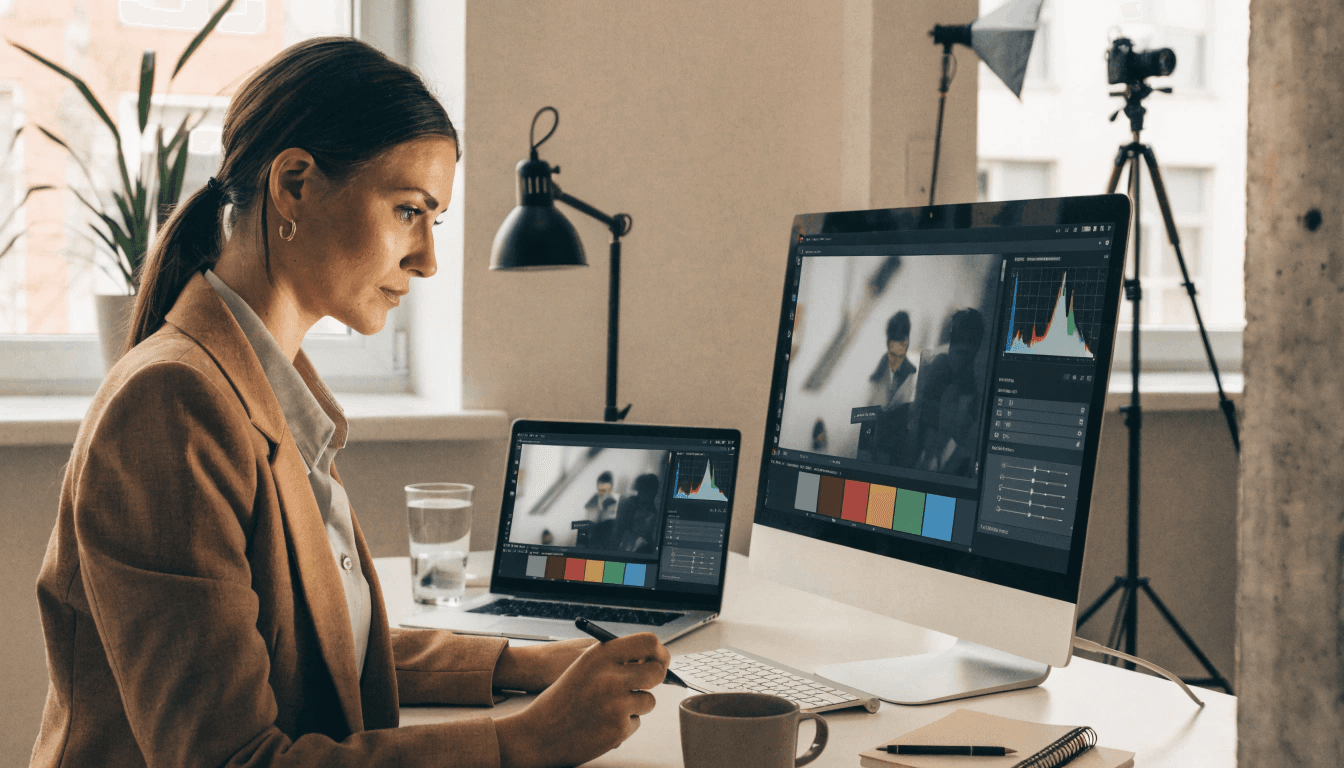
Meet Riya. She runs a boutique candle brand online. She has two dedicated team members, an active Instagram following, and an Adobe Photoshop subscription she opens maybe twice a week.
Every month, her credit card gets charged. Every single month she thinks, "I really need to cancel this." And every month, daily business operations get in the way and she forgets.
Sound familiar? If you are searching for Photoshop alternatives for small business, you are likely in the exact same boat. You need sharp product photography, high-converting ad graphics, and clean social media posts. What you do not need is an expensive, recurring software invoice for hundreds of complex engineering features your team never touches.
Here is the good news. In 2026, the creative software landscape has evolved dramatically. Modern design tools offer incredible precision: some are 100% free and open-source, others require only an affordable one-time payment, and several are substantially faster for everyday commercial tasks than Photoshop itself.
In this comprehensive guide, we start from absolute zero. We examine what Photoshop actually delivers, unpack why small businesses are actively switching away, and break down the top 11 alternatives that deliver professional output without draining your operating budget.
2. Photoshop Basics: What You Are Really Paying For
Before replacing a foundational piece of software, it helps to understand what it actually does.
Adobe Photoshop is primarily a raster graphics editor. Unlike vector graphics (which use mathematical formulas to scale infinitely without losing quality), raster editors manipulate bitmap images constructed from grids of colored squares known as pixels. Digital photos, camera RAW files, web banners, and product mockups are all raster assets.
Photoshop excels at:
- Precision multi-layer masking and background extraction
- High-end commercial color grading and tonal curves
- Skin retouching, frequency separation, and blemish correction
- Complex multi-image compositing and digital manipulation
- Typography styling, layer effects, and print preparation
It has held the mantle of creative industry standard for over three decades. That reputation is why "photoshopping" entered everyday vernacular.
How Much Does Photoshop Cost in 2026?
Photoshop is sold strictly as a recurring Creative Cloud subscription:
- Single-App Photoshop Plan: Approximately $22.99 per month on an annual commitment, totaling roughly $276 per year per user.
- Creative Cloud All Apps Bundle: Approximately $60 to $85 per month, exceeding $700 to $1,000 annually per seat.
For an enterprise advertising agency with dozens of specialized retouching artists, that expense is standard operating procedure. But for an agile small business with tight margins, paying $276 to $800+ per user each year represents a severe money leak—especially if your team only uses basic cropping, resizing, and simple text overlays.
Pro Tip: If your team only uses 10% of Photoshop's advanced toolset, you are still paying 100% of the price. Catalog your exact weekly creative tasks before committing to any software subscription.
3. Why Small Businesses Are Leaving Photoshop
Adobe Photoshop remains a powerhouse, but small business owners face distinct operational realities. The shift toward modern alternatives is driven by six practical factors:
- Perpetual Subscription Burn: Subscriptions never build equity. The moment you pause payments, you lose immediate access to your software and creative workflow.
- Steep Learning Curves: Photoshop contains hundreds of deeply nested menus, panels, and keyboard shortcuts. Training non-designer employees can take weeks or months.
- Hardware Demands: Running Photoshop smoothly requires powerful GPUs, large RAM allocations, and fast SSDs. Older office laptops experience noticeable lag and crashes.
- Early Cancellation Penalties: Annual subscription contracts often include steep early-termination fees if canceled mid-cycle.
- Overkill for Everyday Work: Creating a daily Instagram promo or removing a background from a customer review photo should take 60 seconds—not a 10-minute desktop software launch.
- Disruptive Market Shifts: In late 2025, Canva made Affinity's entire desktop suite free for individual users, instantly providing millions of businesses with enterprise-grade photo editing and vector design at zero license cost.
4. What to Look For Before You Switch
Do not choose a replacement simply because it has flashy marketing or a free price tag. Run every candidate tool through this practical vetting checklist:
1. Match Your Actual Business Workflow
Audit what your business actually creates each week:
- Product photo cutouts with transparent backgrounds
- Seasonal promotional banners and discount flyers
- Instagram carousels, Stories, and Pinterest pins
- Website hero graphics and compressed WebP thumbnails
- Quick PDF edits and printable invoices
2. Team Learning Velocity
If you or your team members lack formal design degrees, choose an intuitive interface that team members can master in an afternoon.
3. File Compatibility & PSD Support
Can the application open and save native Photoshop (.PSD) files with preserved layer structures? This is crucial when collaborating with external freelance photographers or marketing contractors.
4. Cross-Platform Accessibility
Determine whether your team works on Windows, macOS, Chromebooks, or iPads. Browser-based editors offer unmatched flexibility because they eliminate local installation headaches.
5. Hidden Commercial Costs
Verify whether export resolutions are capped, whether commercial licensing is included, and whether advanced AI tools (like generative background expansion) require supplemental monthly credits.
The Golden Rule for Small Businesses: Adopt the simplest, cleanest tool that comfortably handles 90% of your everyday visual workload. Reserve a specialized secondary utility for the remaining 10%.
5. The 11 Best Photoshop Alternatives for Small Business
1. Affinity (by Canva): Best Overall Free Professional Replacement
- Platform URL: Affinity
- Pricing: Core desktop application is 100% Free (requires a free Canva account; advanced AI generative features require Canva Pro)
- Platforms: Windows, macOS, iPad
- PSD Support: Outstanding layer-by-layer compatibility
Following Canva's landmark decision to make Affinity's core creative suite free, Affinity represents the most formidable standalone Photoshop replacement in the market. It seamlessly integrates photo editing (formerly Affinity Photo), vector illustration (Designer), and desktop publishing (Publisher) into a single unified studio workspace.
Key Strengths:
- Non-destructive adjustment layers, real-time live blend modes, and unlimited undo history.
- Full RAW camera file development with dedicated lens correction profiles.
- Native CMYK print export, bleed setups, and pantone color palettes.
- Lightning-fast performance with zero subscription fee for the complete core editor.
Trade-offs:
- Advanced cloud generative fill tools link to Canva's ecosystem.
- Does not support legacy Photoshop automation actions (.atn).
Real-world Application: A boutique home goods store photographs ceramic mugs on a workshop table, uses Affinity's selection brush to isolate the product in seconds, adjusts white balance and exposure curves, and exports a print-ready wholesale catalog page—all inside one application without leaving the workspace.
2. Canva: Best for Non-Designers and Fast Social Marketing
- Platform URL: Canva
- Pricing: Robust Free tier; Canva Pro is ~$120/year or ~$15/month
- Platforms: Web browser, iOS, Android, Windows, Mac
- PSD Support: Limited import
Canva transformed graphic design by replacing empty canvas anxiety with millions of customizable, business-ready templates. It is designed from the ground up for speed, team collaboration, and marketing agility.
Key Strengths:
- Drag-and-drop simplicity that any team member can learn in 15 minutes.
- Centralized Brand Kit storing your hex codes, brand typography, and logo variations.
- Built-in social media scheduling and multi-platform auto-resizing.
- One-click background remover and magic erase utilities.
Trade-offs:
- Not built for intricate pixel-level photo retouching or frequency separation.
- Generic template designs can look repetitive if not customized with unique brand photography.
3. GIMP: Best Free Open-Source Powerhouse
- Platform URL: GIMP
- Pricing: 100% Free & Open Source (GNU General Public License)
- Platforms: Windows, macOS, Linux
- PSD Support: Comprehensive reading and export
GIMP (GNU Image Manipulation Program) has been the cornerstone of open-source image editing for three decades. With modern version updates, GIMP delivers deep non-destructive editing, custom scriptable automation, and an extensive library of community plugins.
Key Strengths:
- Completely free for unrestricted commercial use forever—no accounts, no subscriptions, no ads.
- Sophisticated channel mixing, bezier paths, clone stamps, and perspective transformation.
- Active international developer community providing free specialized extensions.
Trade-offs:
- Interface conventions differ significantly from Adobe products, requiring an adjustment period.
- Lacks native automated AI quick-selection tools found in modern commercial suites.
4. Photopea: Best Browser-Based Photoshop Clone
- Platform URL: Photopea
- Pricing: Free with unobtrusive sidebar ads; Premium is ~$5/month or ~$40/year
- Platforms: Any modern web browser (Chrome, Safari, Edge, Firefox)
- PSD Support: Virtually 1:1 identical to Adobe Photoshop
Photopea is an engineering marvel: a full-featured raster and vector editor that runs entirely client-side inside your web browser. If you already know Photoshop keyboard shortcuts, you will feel immediately at home.
Key Strengths:
- Loads PSD, AI, XD, sketch, and RAW camera files seamlessly.
- Identical layer style windows (drop shadow, stroke, color overlay, bevel).
- Runs on any device without local software installation—even lightweight Chromebooks.
- Zero server uploads: files are processed locally within your browser's memory.
Trade-offs:
- Can slow down when working with massive multi-gigabyte print documents.
- Free tier displays advertising in the right sidebar.
5. Adobe Express: Best for Lightweight Adobe Ecosystem Users
- Platform URL: Adobe Express
- Pricing: Generous Free plan; Premium plan is ~$9.99/month
- Platforms: Web browser, iOS, Android
- PSD Support: Native sync with Creative Cloud assets
Adobe Express is Adobe's direct answer to template-based design platforms. It strips away the intimidating complexity of desktop Photoshop and provides fast, AI-assisted content generation powered by Adobe Firefly.
Key Strengths:
- Seamless integration with existing Creative Cloud libraries and Adobe Stock photos.
- One-click generative fill and text-to-image styling.
- Easy video reel and story formatting.
Trade-offs:
- Lacks granular manual photo retouching controls.
- Advanced features require an ongoing paid subscription.
6. Pixelmator Pro: Best for Apple & Mac-Focused Teams
- Platform URL: Pixelmator Pro
- Pricing: Low one-time purchase via the Mac App Store (around $49.99; check Mac App Store for current pricing)
- Platforms: macOS only
- PSD Support: Excellent multi-layer import and export
Built exclusively for macOS, Pixelmator Pro leverages Apple silicon, Metal graphics acceleration, and Core ML machine learning to deliver blistering performance wrapped in an elegant, modern interface.
Key Strengths:
- One-time purchase model—no recurring monthly software bill.
- Machine-learning powered automatic color enhancement, subject selection, and resolution upscaling.
- Deep integration with Apple Photos, Sidecar, and trackpad gestures.
Trade-offs:
- Exclusive to macOS; unusable if team members work on Windows or Linux.
7. Krita: Best for Custom Digital Illustration & Mascot Art
- Platform URL: Krita
- Pricing: 100% Free & Open Source
- Platforms: Windows, macOS, Linux
- PSD Support: High compatibility
While primarily developed for digital painters and concept illustrators, Krita offers a stellar toolset for small businesses that create custom mascots, packaging graphics, sticker artwork, and hand-drawn branding elements.
Key Strengths:
- World-class brush stabilization, symmetry drawing engines, and wrap-around textures.
- Layer management with support for non-destructive filter masks.
- Absolutely free without usage limits or watermarks.
Trade-offs:
- Not engineered for batch e-commerce product photo retouching.
8. Paint.NET: Best Ultra-Lightweight Editor for Windows
- Platform URL: Paint.NET
- Pricing: Free (classic desktop executable) or small optional purchase via Microsoft Store
- Platforms: Windows only
- PSD Support: Available via community plugin
For Windows business users with budget hardware who only need clean cropping, quick arrows, color adjustments, and basic layering, Paint.NET starts instantly and runs with practically zero system overhead.
Key Strengths:
- Starts up in less than 2 seconds; ultra-light on CPU and RAM.
- Clean, uncluttered user interface that anyone can navigate immediately.
- Rich third-party plugin ecosystem for custom effects and file format exports.
Trade-offs:
- Windows only; lacking advanced vector typography or print CMYK tooling.
9. Fotor & Pixlr: Best Instant AI Browser Enhancers
- Platform URL: Fotor / Pixlr
- Pricing: Free tier with limits; Pro tiers range from ~$3 to ~$8/month
- Platforms: Web browser, Mobile
- PSD Support: Pixlr supports PSD layers
Fotor and Pixlr specialize in rapid visual enhancement: automated skin smoothing, lighting balance, object removal, and pre-packaged filters that turn smartphone product snapshots into clean digital assets in seconds.
Key Strengths:
- Instant browser access without installation.
- One-click commercial portrait and product enhancement presets.
- Low learning curve for non-technical team members.
Trade-offs:
- Free accounts often limit export resolution or append watermarks to certain AI tools.
10. Figma: Best for Web Layouts, UI Mockups & Ad Collateral
- Platform URL: Figma
- Pricing: Generous Free Starter plan; Professional from $12/editor/month
- Platforms: Web browser, Windows, macOS
- PSD Support: Vector/SVG focused; imports raster images as fills
Figma has largely replaced Photoshop for website design, digital marketing banners, email graphics, and collaborative team feedback. Multiple team members can work on the exact same canvas simultaneously.
Key Strengths:
- Real-time multiplayer collaboration: leave comments and co-edit in live sync.
- Component auto-layout systems that make resizing responsive ad sets effortless.
- Generous free tier that includes up to three collaborative project files.
Trade-offs:
- Built for UI/vector layout; not built for pixel-level blemishes or lens distortion repairs.
11. Specialized Single-Task AI Tools (Remove.bg, Upscalers)
- Platform URL: Remove.bg
- Pricing: Free low-res previews; paid API / credit bundles
- Platforms: Web browser, desktop apps, Photoshop plugins
Sometimes, replacing Photoshop does not mean finding an identical all-in-one software clone. Dedicated micro-tools perform one specific task with superhuman speed.
Key Strengths:
- Eliminates hours of tedious pen-tool clipping paths.
- Bulk background removal for e-commerce inventories.
- Can be paired with free editors like Affinity or Canva for final composition.
Pro Tip: The most cost-effective small business tech stack is often a dynamic duo: use an all-rounder like Affinity or Canva for overall design, and pair it with browser utilities like our AI Background Remover and Image Resizer to prepare assets in seconds.
6. Big Comparison Table: Photoshop Alternatives at a Glance
The following comparison matrix breaks down all 11 alternatives by key criteria, including starting price, learning curve, supported operating systems, and native PSD compatibility:
Photoshop Alternatives Feature & Cost Matrix
| Tool | Primary Use Case | Starting Price | Learning Curve | Platforms | PSD Support |
|---|---|---|---|---|---|
| Affinity (by Canva) | All-in-one professional photo & vector editing | 100% Free core app | Moderate | Windows, macOS, iPad | Yes (Full layers) |
| Canva | Social graphics, flyers, marketing templates | Free / $120/yr Pro | Very Easy | Browser, iOS, Android | Basic import |
| GIMP | Deep raster photo retouching & manipulation | 100% Free (Open-Source) | Moderate to Steep | Windows, macOS, Linux | Yes |
| Photopea | Photoshop-style browser editing & PSD rescue | Free (Ad-supported) | Easy (if familiar with PS) | Web browser (All devices) | Yes (1:1 clone) |
| Adobe Express | Quick branded templates & Firefly AI | Free / $9.99/mo | Very Easy | Browser, Mobile | Yes (Creative Cloud) |
| Pixelmator Pro | High-performance Mac photo editing | ~$49.99 One-time purchase | Easy to Moderate | macOS only | Yes |
| Krita | Digital painting, custom illustration & mascots | 100% Free (Open-Source) | Moderate | Windows, macOS, Linux | Yes |
| Paint.NET | Fast lightweight edits on older Windows PCs | 100% Free | Very Easy | Windows only | Via free plugin |
| Fotor / Pixlr | Instant portrait retouching & online filters | Free / Freemium | Very Easy | Web browser, Mobile | Varies by tool |
| Figma | Landing pages, ad layouts & team mockups | Free Starter / $12/mo | Moderate | Browser, Desktop | No (Vector focus) |
| Remove.bg & AI Helpers | Automated product background extraction | Free tier / Pay-per-credit | Zero learning curve | Browser / API | Exports PNG with alpha |
A three-person small business team subscribing to Adobe Creative Cloud spends between $800 and $2,400 annually. By transitioning to Affinity and Canva, that same business can reduce design software overhead to virtually $0 while improving marketing turnaround times.
7. Which Tool Fits Which Business?
Every small business has unique visual requirements. Match your operational profile to our recommended software stack:
E-Commerce & Retail Stores
- Primary Editor: Affinity or GIMP
- Helper Tools: AI Background Remover and Bulk Image Converter
- Why It Works: You need crisp, uniform white backgrounds, accurate product color balances, and fast conversion to lightweight WebP formats for high-speed store loading.
Cafes, Bakeries & Local Hospitality
- Primary Editor: Canva
- Why It Works: Weekly specials, printed table menus, chalkboard-style social graphics, and promotional flyers benefit exponentially from pre-built commercial templates.
Real Estate Agencies & Property Managers
- Primary Editor: Canva paired with Affinity
- Why It Works: Real estate flyers and social brochures require rapid drag-and-drop formatting, while interior listing photos often need lens distortion corrections and exposure balancing.
Freelance Designers & Agile Marketing Agencies
- Primary Editor: Affinity plus Photopea
- Why It Works: You regularly exchange PSD and AI files with corporate clients and require full layer fidelity without locking yourself into Adobe's licensing terms.
Digital Coaches, Consultants & Service Providers
- Primary Editor: Canva or Figma
- Why It Works: Visual branding centers around webinar slide decks, LinkedIn carousels, downloadable PDF workbooks, and YouTube thumbnails.
8. How to Switch Without Panic (Step-by-Step Transition Plan)
Switching software tools does not have to disrupt active business operations. Follow this battle-tested 7-step transition protocol:
Step 1: Document Your Active Design Tasks
For one full business week, maintain a quick notepad list of every single graphic task your team handles (e.g., "crop customer testimonial photo," "create 20% off weekend story," "resize banner to 1200x630").
Step 2: Select Two Candidate Solutions
Resist the temptation to test all 11 applications simultaneously. Pick one primary all-rounder (such as Affinity or Canva) and one browser helper (such as Photopea or an AI background remover).
Step 3: Run a Parallel Pilot Project
Take an actual commercial task—like designing next month's promotional email banner—and complete it from scratch using your chosen candidate software. Note any friction points or missing features.
Step 4: Verify Legacy File Archives
Open three of your most complex historical PSD files inside Affinity and Photopea. Verify that layer masks, smart typography, and transparency channels render cleanly.
Step 5: Train Your Team with Micro-Tutorials
Avoid overwhelming employees with 4-hour comprehensive courses. Curate three 5-minute YouTube tutorials showing the exact steps for your business's top repetitive tasks.
Step 6: Maintain a 30-Day Overlap Period
Keep your existing Adobe subscription active for a single 30-day billing cycle while your team transitions. This ensures you have a zero-risk safety net for urgent deadlines. Remember to review Adobe's cancellation policy early to avoid unexpected annual contract penalties.
Step 7: Build Reusable Master Templates
Standardize your brand fonts, color codes, and standard canvas dimensions into master templates. Reusable templates represent where the true long-term time savings occur.
9. Common Mistakes to Avoid When Leaving Photoshop
Avoid these frequent pitfalls when migrating your creative workflow:
Mistake 1: Choosing Exclusively Based on Price
Free software that frustrates your team and slows output by 50% is vastly more expensive in lost payroll hours than an intuitive tool.
Mistake 2: Forgetting to Export Uncompressed Master Assets
Always save your editable master project files (in .afphoto, .xcf, or .psd format) alongside exported web-ready JPGs and WebPs. If prices or dates change next season, you will need editable layers.
Mistake 3: Overlooking Commercial Licensing Guidelines
Ensure that stock illustrations, template elements, and fonts bundled in free tiers permit unrestricted commercial merchandising and advertising use.
Mistake 4: Uploading Heavy, Uncompressed Images to Your Website
Photoshop has a famous "Save for Web" dialog. When switching to alternatives, always pair your export with modern image compression utilities like our Image Compressor to protect your search engine page speeds.
Mistake 5: Neglecting Brand Consistency
When multiple team members use free template software, marketing visuals can quickly devolve into a chaotic mix of random fonts and clashing colors. Establish a strict brand style sheet on day one.
10. Pro Tips from Real-World Commercial Design
Pro Tip 1: Standardize Your Core Aspect Ratios. Create permanent master presets for your 5 primary dimensions: Instagram Post (1080x1080 / 1:1), Story/Reel (1080x1920 / 9:16), Facebook Ad (1200x628), Website Hero (1920x800), and Square Product Listing (1200x1200).
Pro Tip 2: Migrate to Modern WebP Formatting. Stop saving web banners as bulky PNG-24 files. WebP files provide identical transparency and sharp edges at a 30% to 70% reduction in file weight. Learn more in our guide on image file formats explained.
Pro Tip 3: Enforce the "Two Fonts, Three Colors" Discipline. Professional branding stems from disciplined constraint. Restrict marketing visuals to a maximum of two complementary font families and three primary brand palette colors.
Pro Tip 4: Batch Your Product Photography Edits. Never edit photos individually as orders trickle in. Dedicate a 90-minute block once per week to color-correct, crop, and compress your entire batch simultaneously using our Bulk Image Converter.
Pro Tip 5: Always Test Visual Legibility on Mobile Viewports. Over 75% of your customers interact with your social ads and product listings on a 6-inch mobile screen. Zoom out to 25% on your desktop monitor to verify whether headline text remains instantly readable.
11. Latest Visual Design Trends in 2026
The graphic design and commercial photography sector is undergoing fundamental transformations:
Pro-Grade Software Becoming Free
Canva's strategic release of Affinity's desktop applications completely shifted market dynamics. High-end layer masking and RAW processing are no longer restricted to premium subscription tiers.
Integrated Generative AI Workflows
One-click generative background extension, natural-language lighting adjustments, and context-aware subject removal are now expected native capabilities across modern design tools.
Rise of Local Client-Side In-Browser Processing
Advanced WebAssembly (Wasm) and WebGPU technologies enable browsers to run complex graphics pipelines (like Photopea and ImageMagix tools) with zero server latency and total data privacy.
Subscription Resistance & One-Time Licensing
Small businesses are pushing back against recurring SaaS fatigue, prioritizing perpetual licenses, open-source repositories, and truly free utility platforms over endless monthly billings.
Vertical-First Video & Static Synergy
Visual branding increasingly demands unified vertical framing that scales seamlessly across Instagram Reels, TikTok, YouTube Shorts, and Pinterest Idea Pins.
12. SEO Extras: Internal Linking & Authority References
Strategic Internal Links
Incorporate these contextual resources naturally throughout your website architecture:
| Placement Area | Anchor Text | Recommended Target Page |
|---|---|---|
| In Photoshop Basics | image file formats explained | Comprehensive guide comparing JPG, PNG, and WebP |
| In Pro Tips Section | how to compress images for web | Step-by-step image compression walkthrough |
| In Business Matching | best photo editing software for business | Small business photo software roundup |
| In Workflow Section | Image Resizer | Browser-based image dimension scaling tool |
| In Workflow Section | AI Background Remover | One-click automatic background removal tool |
External Authority References
| Authority Resource | Placement Context | Anchor Text | Attribute | Strategic SEO Value |
|---|---|---|---|---|
| Wikipedia: Raster Graphics | In "Photoshop Basics" defining raster pixel editing | raster graphics editor | DoFollow | Cites a foundational encyclopedic definition to establish topical depth and entity clarity. |
| Affinity Official Portal | In "Affinity" breakdown section | Affinity | NoFollow | Direct link to official commercial software portal, maintaining search engine crawl integrity. |
| GIMP Project (gimp.org) | In "GIMP" breakdown section | GIMP | DoFollow | Authoritative reference to the premier global open-source GNU development project. |
13. Conclusion & Your Immediate Action Plan
Creating high-impact, professional visual assets does not require a $276 to $840 annual Adobe tax. The modern creative ecosystem offers powerful, intuitive, and affordable tools that fulfill every commercial demand—from precision product cutouts to dynamic social media marketing campaigns.
Take immediate action with this simple 4-step execution plan:
- Audit: Review your team's real monthly design tasks and eliminate unused software seats.
- Download: Test Affinity for deep photo editing or launch Canva for fast promotional templates.
- Streamline: Bookmark browser utilities like our AI Background Remover and Image Resizer for lightning-fast daily tasks.
- Standardize: Build reusable brand templates to save hours every single week.
Small operating savings compound into substantial annual capital that you can reinvest directly into advertising, inventory, and customer experience.
Ready to start? Pick one tool from this guide, launch it today, and edit a live product image for your business.
Frequently Asked Questions
Related Tools
Try out these tools mentioned in the article.